Quick triage: Tomato APK not installing
Start with the exact Android message. No installer after a tap usually points to source permission. App not installed can mean a signer conflict, downgrade, incompatible Android version, low storage, or an incomplete package. A parse message often means a damaged download or missing split.
Do not enable every setting or rotate through mirrors. For a Tomato APK not installing case, record Android version, device, storage, filename, extension, version, and whether Tomato is installed. Then follow the matching row.

| What you see | Likely layer | First safe check |
|---|---|---|
| The installer never opens | Source-app permission or unreadable file | Check Install unknown apps for the browser or file manager that launched it. |
| App not installed | Signer, version, compatibility, storage, or package conflict | Check the existing package, version code, Android requirement, architecture, and free space. |
| Parse or invalid-package error | Incomplete download, wrong format, or malformed package | Compare size and SHA-256; confirm APK versus XAPK/APKS/APKM. |
| Update is blocked | Different signer or lower version code | Keep the current app and compare identity before uninstalling. |
Check the file before changing Android settings
An APK is a signed Android package, not just a name. Preserve the source URL, timestamp, filename, exact size, advertised version, package name, and any SHA-256 or signing fingerprint. Anyone can rename Tomato-latest.apk; a badge without a source record is only a lead.
Confirm the container. A single APK is different from XAPK, APKS, APKM, and other bundles that hold base and configuration splits. Renaming a bundle does not convert it, and mixing splits from different releases can create an unsafe or un-installable set.
- Keep the source URL and original filename beside the file.
- Compare SHA-256 when a trustworthy publisher provides it.
- Treat changed filenames and copied badges as weak evidence.
- Do not use a mod, cracked, or repackaged build as a workaround.
Fix source permission and security blocks
On Android 8.0 and later, Install unknown apps belongs to a particular source app. The browser that downloaded a file and the file manager that opened it may differ. Grant the narrow permission only to the launcher, then revoke it after the test. Older devices may call it Unknown sources.
Play Protect and work-device policy are separate blocks. A harmful-app or unregistered-developer warning needs source, signer, package, and permission review; turning off protection cannot repair a corrupt file or a signature mismatch.

- 1
Identify the source app
Use the browser or file manager that actually opened the file, not every app on the device.
- 2
Grant one temporary permission
Enable Allow from this source only when the file record is ready and keep Play Protect on.
- 3
Separate prompt types
An unknown-source prompt differs from a harmful-app or policy warning; the latter needs evidence review.
- 4
Revoke after the test
Disable the same source-app permission when the check is complete.
Check package format, Android version, and CPU architecture
Compatibility belongs to the exact file and device. Compare Android version with minSdk and target behavior when available. A newer minimum blocks older systems, while a very old target can be rejected by newer Android rules. Phones, TV boxes, emulators, and Fire TV devices can expose different features.
CPU architecture is another hidden mismatch. Modern phones usually use ARM64; older tablets, emulators, and desktop runtimes may use armeabi-v7a or x86. Use the publisher's compatibility table instead of choosing a build by file size.
| Check | What to compare | What a mismatch means |
|---|---|---|
| Android version | Device API level and package minSdk | The app needs a newer system or a compatible older release. |
| Target behavior | Target SDK and current Android rules | A very old build may be rejected on a newer system. |
| CPU architecture | arm64-v8a, armeabi-v7a, x86, or x86_64 | Native libraries may not load. |
| Container | APK versus XAPK, APKS, APKM, or splits | Required base or configuration components may be missing. |
| Storage | Free working space beyond the file size | Android cannot unpack or verify the package. |
Resolve existing-app signature and version conflicts
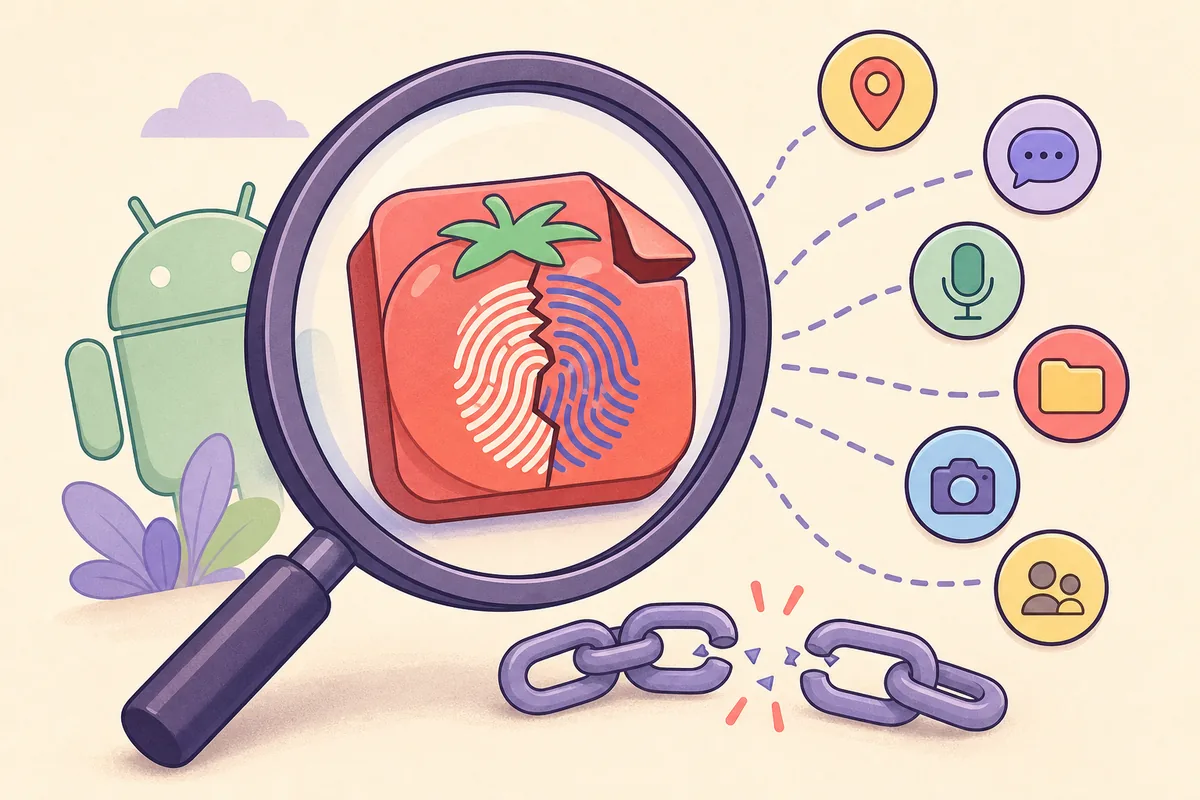
Android uses the application ID and signing certificate to decide whether a package can update an installed app. The same Tomato label and package name can still hide different keys. A store build, beta, mod, or mirror may refuse to update another copy; a higher installed versionCode can also block a downgrade.
Do not uninstall first. Record the installed version, package name, signer, and backup options because removal can erase local data and downloads. If a source cannot explain a changed certificate or package ID, treat the new file as a different or modified release.
- 1
Check the installed copy
Record package identity, version, and storage use from Android settings; do not rely on the launcher label.
- 2
Compare signer and version code
Use a publisher record or trusted inspection tool; a different signer or lower code explains many failures.
- 3
Back up and choose
Use documented export or sync, then update only when identity is continuous.
Free storage, retry once, and remove stale files
Android needs working space beyond the visible APK size to copy, unpack, and verify a file. Free internal storage, remove stale installers, and restart once. Do not keep tapping Install while the package or source evidence is unknown.
After a retry, keep the exact error and file record. A verified file that fails on multiple compatible devices points toward the package or release; a device-only failure points toward Android version, CPU, policy, storage, or installed-app state.
- Keep free internal storage for unpacking and verification.
- Record source and hash before deleting a failed installer.
- Retry a verified download once over a stable connection.
- Remove stale APK, XAPK, and split files so you do not open the wrong copy.
Use ADB for evidence, then know when to stop
When the message is vague, Android Debug Bridge (ADB) can expose a package-manager error on a device or emulator you control. Install Platform Tools from Android Developers, enable USB debugging only on the test device, accept the RSA prompt, and run `adb devices` before testing. ADB diagnoses; it should not force an unknown package onto a personal phone.
A controlled `adb install app.apk` can reveal an SDK, downgrade, certificate, or malformed-package error. Split packages need `install-multiple` with components from one release. Keep output beside the hash, then stop at an untraceable source or harmful-app warning.
- 1
Use a clean test device
Keep personal accounts and data away from an unverified package.
- 2
Install official Platform Tools
Use Android Developers, not a random APK mirror.
- 3
Confirm the connection
Accept the RSA prompt and run adb devices; an unlisted device is a connection issue.
- 4
Capture and stop
Save one precise error with the file record. Never use root changes, downgrade flags, or disabled protection to force an unresolved package.
Official Android references
These primary references support the permission, package identity, and ADB concepts used in this troubleshooting guide.
- Android alternative distribution and unknown-app permissionAndroid Developers explains why unknown-source installs require a per-source opt-in on modern Android.
- Android app signingOfficial guidance on signing keys and the identity relationship between app updates.
- Android Debug Bridge (adb)Official Platform Tools and device-connection reference for a controlled diagnostic install.
- Google Play Protect helpGoogle's guidance for keeping Play Protect enabled and reviewing app warnings.
Tomato APK installation troubleshooting questions
Why is Tomato APK not installing on Android?
The generic message can represent a corrupt or split package, a missing source permission, an Android or CPU mismatch, insufficient storage, an existing app with a different signer, a downgrade, or a security or device-policy block. Match the exact symptom to the diagnostic table before retrying.
Should I enable Install unknown apps for every app?
No. On modern Android, grant the permission only to the browser or file manager that actually launches the installer, then revoke it after the test if you do not need ongoing sideloading.
Can I rename XAPK or APKM to APK?
No. Renaming changes the label, not the package structure. XAPK, APKS, APKM, and other split bundles need a compatible installation method with all required components from the same release.
Why will a Tomato APK update not install over the old app?
Android expects the same application ID and signing certificate and normally rejects a lower versionCode. A Play Store build, mod, beta, or mirror may use a different signer. Back up data before considering removal.
Should I turn off Play Protect to install Tomato APK?
No. A Play Protect warning is diagnostic information about a package or source. Verify the publisher, hash, signer, permissions, and package format instead of disabling a protection that helps block harmful apps.