
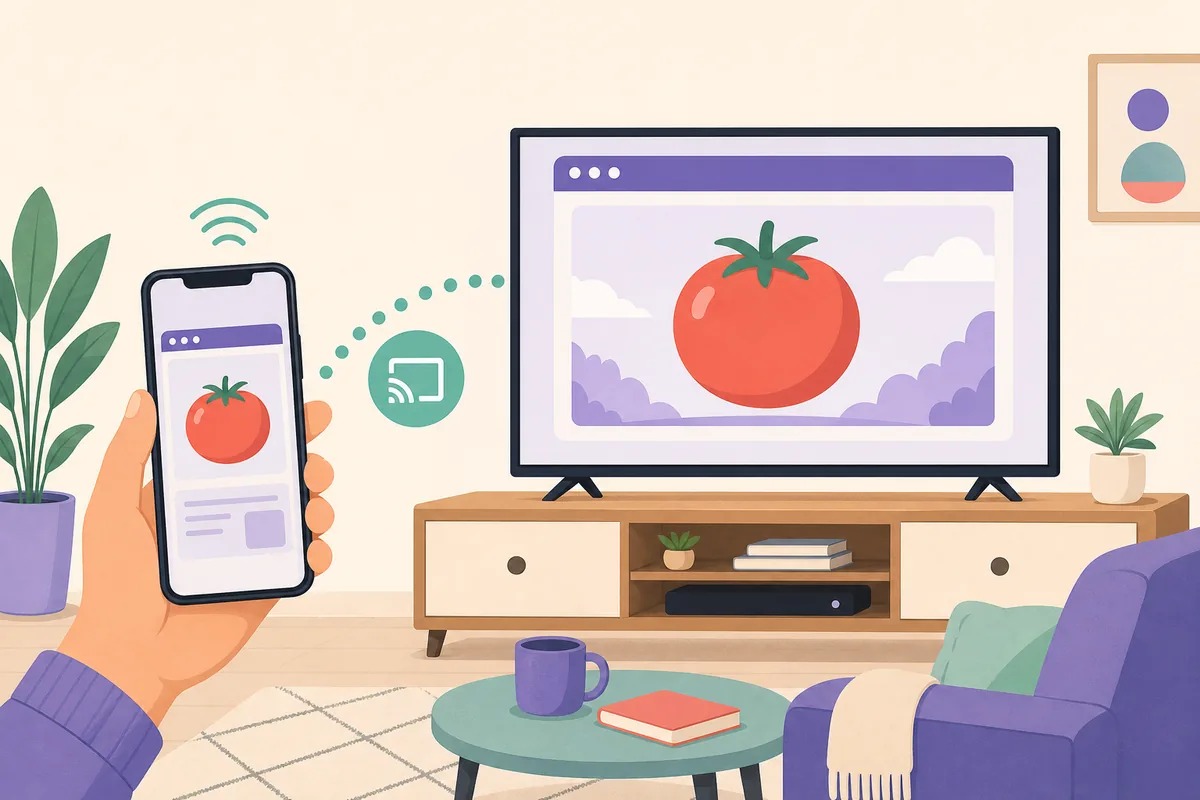
Quick answer: start with the lowest-risk TV route
If tomato-anime.com works in the television browser, that is the simplest route to test first. If the browser is awkward, cast from a phone on the same network and keep the phone as the controller. Android TV, Google TV, and Fire TV may technically accept Android packages, but that creates a separate compatibility, signer, permission, and source-verification question. Roku, Apple TV, Samsung Tizen, and LG webOS do not install Android APK files.
What does Tomato TV mean?
Tomato TV is an ambiguous search phrase. It can mean watching the Tomato Anime web experience on a large screen, sending playback from a phone to a television, searching for an Android TV package, or looking for a similarly named service. A keyword, logo, or domain title does not prove that every site, APK, and television listing has the same publisher.
Separate the viewing problem from the download problem. A TV browser or cast session tests whether a web route is usable. An installed APK adds package identity, signing, permissions, update behavior, and local storage. Those are different evidence requirements, even when a page uses the same Tomato wording.
The most useful first question is therefore not whether Tomato TV has a newest APK. Ask which screen and input method you already have, whether a browser route is available, and whether the exact source can be tied to an accountable publisher.
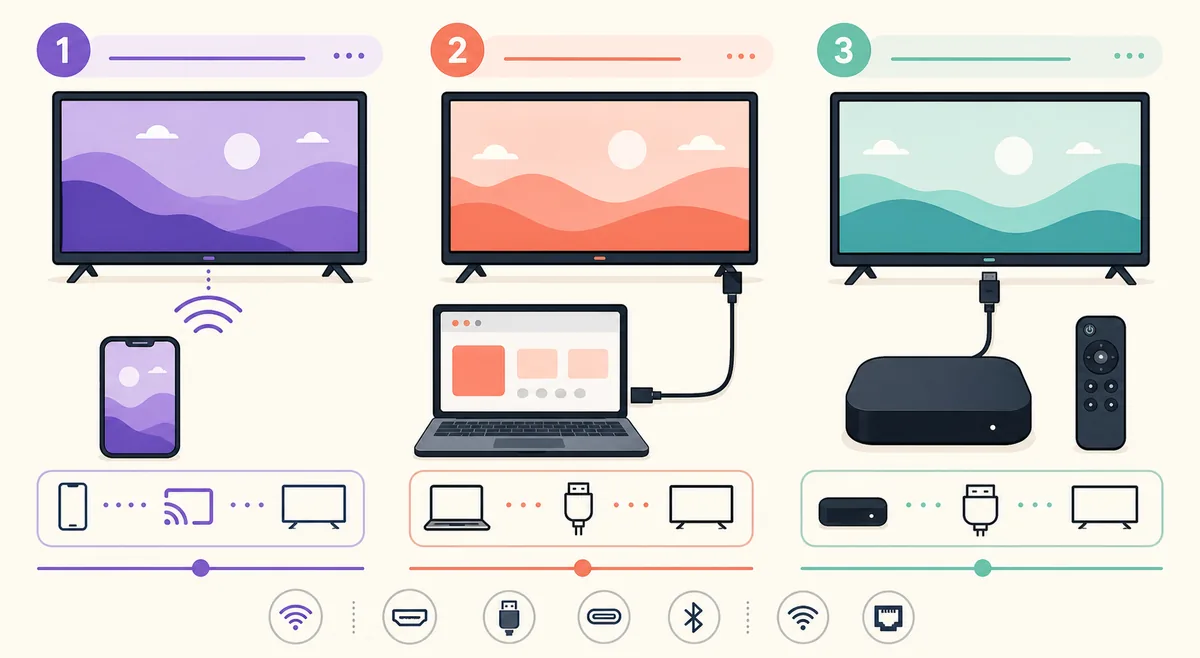
Route 1: open Tomato Anime in a TV browser
A browser is usually the cleanest way to test a web experience because it does not require sideloading a package. On Android TV, Google TV, Fire TV, or a television with a supported browser, open the address directly, check the HTTPS domain, and observe whether the page and video controls fit the screen.
Use the remote to move through the address field, search controls, episode cards, play button, subtitle menu, and full-screen control. Some TV browsers have limited codec support, block pop-ups, or make text entry slow. Those limitations describe the browser route; they do not prove that a separate APK would be safe or compatible.
Do not install a browser extension, downloader, or unknown helper just because a page asks for it. Stop when redirects, fake update notices, aggressive notification prompts, or download buttons obscure the original domain.
- Confirm the address bar shows the intended domain and HTTPS connection.
- Test play, pause, seek, full screen, subtitles, and volume from the remote.
- Check whether the page remains readable at television distance.
- Leave pop-ups, notification prompts, and unknown helper downloads unopened.
- Record the browser and TV model if playback fails so the problem is reproducible.
Route 2: cast from a phone to the television
Casting keeps discovery and navigation on the phone while the television displays the session. Connect the phone and TV to the same trusted Wi-Fi network, open the verified web route in the phone browser, and use the browser or player cast control only when the target television appears as an expected device.
A cast icon can start a remote playback session, mirror the whole phone screen, or depend on a receiver built into the television. These modes behave differently. If the page has no supported cast control, screen mirroring may be the only option, and the phone must stay awake or maintain the session.
Casting does not authenticate the source. It only changes the display path. Continue to review the domain, redirects, privacy prompts, and media behavior, and avoid entering passwords or payment details into a page whose publisher is unclear.
- 1
Prepare both devices
Use the same trusted Wi-Fi network, update the phone and TV software, and disable accidental guest-network isolation.
- 2
Open the web route on the phone
Check the domain and HTTPS connection before selecting a title or signing in.
- 3
Choose the expected receiver
Select the television you recognize; reject unfamiliar devices or pairing requests.
- 4
Test playback and subtitles
Confirm that the TV receives video, audio, captions, seeking, and stop controls.
- 5
End the session
Stop casting from the phone and review any browser permissions before leaving the network.
Route 3: Android TV, Google TV, and Fire TV apps
Android TV and Google TV are Android-based platforms, while Fire TV uses its own Amazon settings and developer workflow. That makes APK installation technically possible in some cases, but a package that installs is not automatically a television app. It still needs remote-focus behavior, landscape layout, compatible CPU libraries, supported Android APIs, enough storage, and a trustworthy signing identity.
Use the existing TV Box compatibility guide for platform, ABI, storage, sideload, and installation-error checks. This page focuses on choosing a viewing route and does not repeat those installation instructions. If the source cannot provide a developer identity, package name, version evidence, signer, exact file size, and hash, stay with a browser or casting route instead.
Roku, Apple TV, Samsung Tizen, and LG webOS use different application formats. A page promising to convert any Android APK to those platforms may deliver a wrapper, redirect, or unrelated installer rather than a supported Tomato TV application.
| Platform | Possible route | What to verify |
|---|---|---|
| Android TV / Google TV | TV browser, cast receiver, store app, or carefully verified sideload | Remote focus, screen layout, ABI, source, signer, permissions, and updates. |
| Amazon Fire TV | Browser, casting, or documented developer-options workflow | Fire OS behavior, remote controls, storage, source, package identity, and network prompts. |
| Roku / Apple TV / Tizen / webOS | Browser, supported cast path, or platform-native store route | Do not assume Android APK compatibility or use an unverified converter. |
Check remote navigation, subtitles, and playback
A large screen changes the practical meaning of a working page. Small touch targets, hidden focus states, portrait-only layouts, unreadable captions, and controls that require swiping can make a route unusable even when a video starts.
Test one short episode or page before spending time on a full catalog. Confirm that the directional pad reaches the same controls a touch user would see, the Back button returns to the expected screen, the subtitle language remains selected, and the device does not request unrelated accessibility, overlay, contacts, SMS, or device-admin permissions.
If the TV route fails but the phone route works, keep the phone as the controller or use a browser on a larger compatible device. Do not jump to a modded or premium-unlocked APK to solve a layout problem.
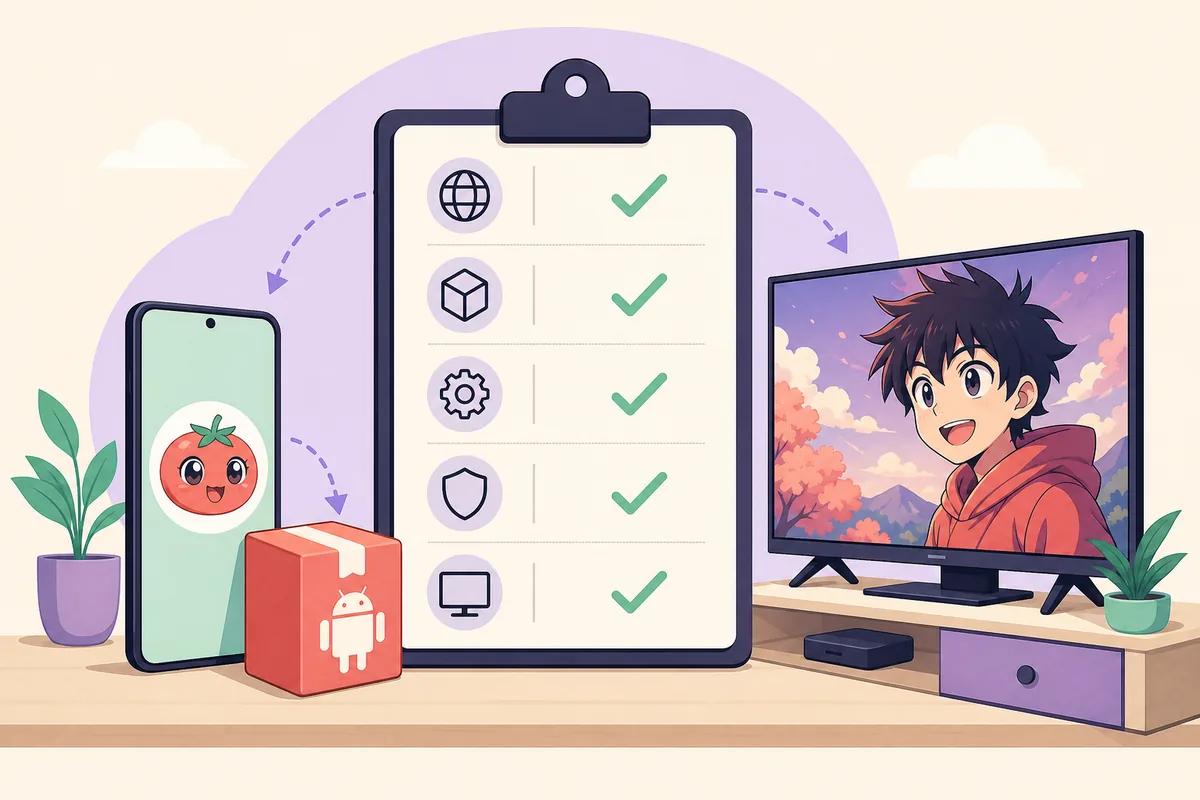
- Directional-pad focus is visible on cards, menus, play, pause, and full screen.
- Back and Home return to the expected app or browser state.
- Subtitles are readable from the normal seating distance and keep their timing.
- The stream does not trigger unexplained downloads, overlays, or permission requests.
- Cache and downloaded media do not consume the device's remaining storage.
Why Tomato TV playback or casting may fail
A black screen, missing cast target, or unresponsive remote does not identify one universal cause. The web player may use a codec the television cannot decode, the phone and TV may be on isolated networks, the browser may block a required feature, or the app may assume touch input. Treat each symptom as a separate test rather than downloading another file immediately.
First reproduce the problem with the same title and route, then compare one variable: browser versus phone, cast versus mirroring, Wi-Fi network, subtitle setting, or device. Record the result. This produces useful evidence without weakening device security or installing random repacks.
| Symptom | Likely route issue | Safer next check |
|---|---|---|
| TV is not shown as a cast target | Different network, receiver disabled, or unsupported player | Check the same trusted Wi-Fi, receiver settings, and browser support. |
| Video starts on phone but not TV | Codec, DRM, browser, or cast-receiver limitation | Try the TV browser or a short test title; do not install an unknown helper. |
| Remote cannot select controls | Touch-first layout or missing focus states | Use the phone as controller or a trusted pointer temporarily; record the limitation. |
| APK installs but opens badly | Phone layout, ABI, API, signer, or permission mismatch | Compare source and package evidence, then remove the package if it is not verifiable. |
Choose a safe Tomato Anime download path
The phrase tomato tv can pull download intent into a page that was originally about viewing. Keep those jobs separate. A browser or cast route can answer whether the web experience is usable; it cannot make a third-party APK official. Conversely, an APK listing cannot prove that it is the same service as tomato-anime.com without a first-party link and matching package evidence.
Before installing any TV package, record the original URL, final host, package name, version name and code, exact byte size, SHA-256, signing certificate, Android or Fire OS compatibility, permissions, and release source. A repeated 1.4.3 label remains a third-party claim in the current review, not a verified latest version. Do not use a direct file URL until those facts can be checked together.
If a TV app asks for unrelated permissions, disables Play Protect, opens aggressive redirects, or cannot explain its update signer, return to the browser or casting route. A smaller feature set with a clearer source is a better answer than a more convenient but unverifiable installer.
A practical Tomato TV checklist
Use this short sequence whenever you revisit the page or change devices. It keeps the search intent focused on getting a usable television experience while preserving the source and security checks required for any later download decision.
- 1
Identify the route
Choose TV browser, phone cast, screen mirroring, or a platform-native app before changing files.
- 2
Confirm the device
Record the TV platform, model, browser or receiver, network, and input method.
- 3
Test one title
Check playback, captions, seeking, focus, Back, Home, and full screen from the normal viewing distance.
- 4
Keep evidence separate
Record web behavior separately from APK package, signature, permission, and version evidence.
- 5
Stop at an unexplained prompt
Do not grant unrelated access or follow a redirect just to force a television route to work.
First-party TV and casting references
These official platform references explain TV layout, casting, Play Protect, and Fire TV access. They do not verify a Tomato Anime package or endorse a third-party download.
- Android TV app quality guidelinesGoogle guidance on television navigation, layouts, and remote-friendly app behavior.
- Cast from Chrome to your TVGoogle help for sending a browser tab or supported media to a Chromecast or Google Cast device.
- Connect to Fire TV through ADBAmazon's developer instructions for connecting to Fire TV; it is not a Tomato release source.
- Google Play Protect helpGoogle guidance on app scanning and warnings for applications installed outside Google Play.
- Tomato Anime web domain checked in the freshness reviewA web route reviewed as a website identity; the domain alone does not authenticate an APK or TV package.
Tomato TV and Tomato Anime on TV questions
What is Tomato TV?
Tomato TV is an ambiguous search phrase that may refer to watching a Tomato Anime website on a television, casting from a phone, or looking for an Android TV package. The phrase alone does not prove one official app or publisher.
Can I watch Tomato Anime on a smart TV?
Try the television browser or a supported phone-casting route first. Android TV, Google TV, and Fire TV may offer additional options, but the exact web route, receiver, device controls, and source still need testing.
How do I cast Tomato Anime from my phone to my TV?
Connect both devices to the same trusted Wi-Fi, open the verified web route on the phone, choose the expected receiver from the cast control, and test video, audio, subtitles, and stop controls. Casting changes the display path; it does not verify the source.
Can I install Tomato Anime APK on Android TV or Fire TV?
Some Android-based devices can technically sideload an APK, but installation does not prove remote compatibility or authenticity. Check platform, ABI, storage, package identity, signer, permissions, and source before considering a package.
Does Tomato Anime work on Roku, Apple TV, Samsung TV, or LG TV?
Those platforms do not natively install Android APK files. Use a compatible browser, supported cast or mirroring route, or a platform-native app only when its source is clear. Avoid unverified APK converters.
Is version 1.4.3 the latest Tomato TV APK?
No verified developer-controlled TV release was established in the August 16, 2026 review. Version 1.4.3 remains a third-party record, so this guide does not label it latest or provide it as an official direct download.
Why does Tomato Anime play on my phone but not on my TV?
The TV may lack a codec, browser feature, cast receiver, remote-focus state, or readable layout. Compare browser, cast, and mirroring routes one variable at a time before changing packages.